In one of my UWP applications, there are posts that may contain content hidden behind a spoiler. Tapping the spoiler shows or hides the content. However, I did not like that the content appeared and disappeared instantly, so I decided to add an animation.
In Windows 10 (although it originally appeared in Windows Phone 8.1), tile folders in the Start menu opened with a similar animation:
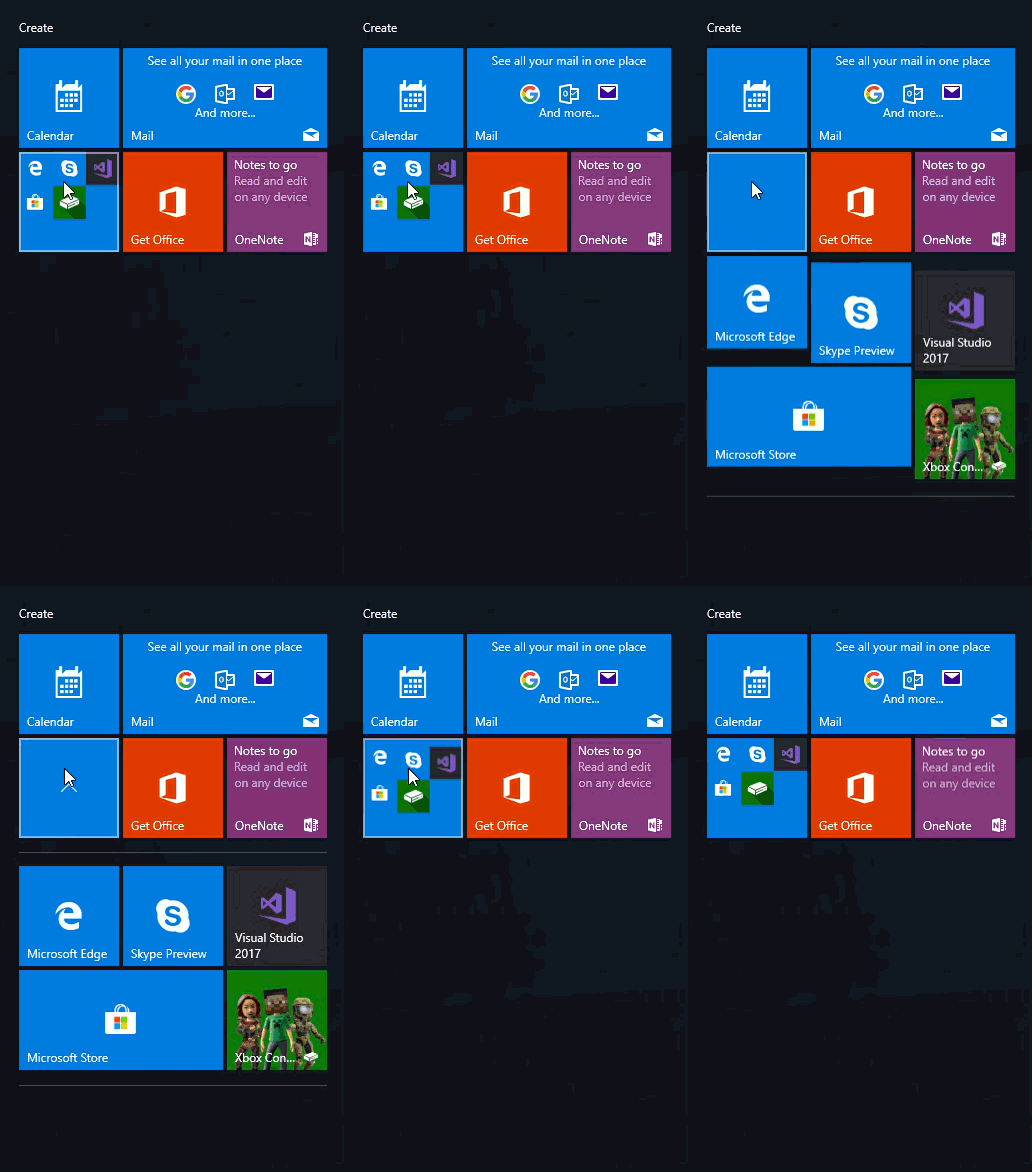
I decided to implement a similar animation in my project. However, searching the internet for a ready-made solution did not lead to anything useful (it is possible that I did not search thoroughly enough), so I decided to write my own.
Requirements
I defined the following requirements for myself:
- It should be possible to animate child elements of any panel — not only built-in ones like
GridandStackPanel, but also custom panels, since I planned to use the animation specifically with a custom panel. - If there are panels among the child elements, their children should also be animated. In other words, we need to recursively retrieve all elements from all nested panels and animate them. This is necessary because I planned to animate both the post text (
RichTextBlock) and elements inside a custom panel (calledMediaGridPanel), and both are located within the sameStackPanel.
Writing the code
We will use the Windows Composition API.
Let’s create a static class called AnimationHelper:
internal static class AnimationHelper
{
    const double DURATION_MS = 300;
    const string DURATION_RESOURCE_KEY = "animation_duration";
}
It will contain two public methods: ShowAnimated…
public static void ShowAnimated(Panel panel, double durationMs = 0)
{
    // The ability to animate "Translation" property has been available since the Creators Update (1703).
    // If you are going to use the code in the Windows App SDK based apps (WinUI 3), you can remove this condition.
    if (!ApiInformation.IsApiContractPresent("Windows.Foundation.UniversalApiContract", 4))
    {
        panel.Visibility = Visibility.Visible;
        return;
    }

    // "durationMs" defines the duration of the animation,
    // and if it is less than or equal to zero, the duration will be taken from the "DURATION_MS" constant.
    if (durationMs <= 0) durationMs = DURATION_MS;

    // When the value of the "Visibility" property changes, the code in the callback below will be executed.
    long id = 0;
    id = panel.RegisterPropertyChangedCallback(UIElement.VisibilityProperty, (a, b) =>
    {
        if (panel.ActualHeight == 0)
        {
            // If the panel's height is 0 (which always happens when the panel is displayed for the first time)
            // then we subscribe to the SizeChanged event and save the duration in the panel's resources.
            panel.Resources.Add(DURATION_RESOURCE_KEY, durationMs);
            panel.SizeChanged += Panel_SizeChanged;
        }
        else
        {
            // Immediately start animation.
            AnimateChildren(panel, out var elementsCount, durationMs);
        }
        panel.UnregisterPropertyChangedCallback(UIElement.VisibilityProperty, id);
    });

    panel.Visibility = Visibility.Visible;
}
…and HideAnimated:
public static void HideAnimated(Panel panel, double durationMs = 0)
{
    // If you are going to use the code in the Windows App SDK based apps (WinUI 3), you can remove this condition.
    if (!ApiInformation.IsApiContractPresent("Windows.Foundation.UniversalApiContract", 4))
    {
        panel.Visibility = Visibility.Collapsed;
        return;
    }

    if (durationMs <= 0) durationMs = DURATION_MS;

    // Start animation.
    AnimateChildren(panel, out var elementsCount, durationMs, true);

    // Waiting a little longer than "durationMs", and then hide the panel.
    new Action(async () =>
    {
        await Task.Delay((int)durationMs + (elementsCount * 4));
        panel.Visibility = Visibility.Collapsed;
    })();
}
Please note the following points:
- If you hide the panel exactly after
durationMsmilliseconds, the last remaining elements will not have enough time to finish hiding. Therefore, I added extra time that depends on the number of elements. - When a panel changes its
Visibilityproperty fromCollapsedtoVisiblefor the first time, its actual height is still zero. In this case, you need to subscribe to theSizeChangedevent and trigger the animation there.
private static void Panel_SizeChanged(object sender, SizeChangedEventArgs e)
{
    Panel panel = sender as Panel;
    double durationMs = (double)panel.Resources[DURATION_RESOURCE_KEY];
    panel.SizeChanged -= Panel_SizeChanged;
    AnimateChildren(panel, out var elementsCount, durationMs);
}
Next, let’s write a method to recursively retrieve elements from child panels:
private static void AddChildrenRecursive(Panel panel, List<UIElement> list)
{
    foreach (var child in panel.Children)
    {
        if (child.Visibility == Visibility.Collapsed) continue;
        if (child is Panel innerPanel)
        {
            AddChildrenRecursive(innerPanel, list);
        }
        else
        {
            list.Add(child);
        }
    }
}
Finally, we write the method that starts the animation. Pay attention to the comments.
private static void AnimateChildren(Panel panel, out int elementsCount, double durationMs, bool reverse = false)
{
    List<UIElement> children = new List<UIElement>();

    // Here will be the animations themselves, which will be launched in the second loop.
    List<ScalarKeyFrameAnimation> animations = new List<ScalarKeyFrameAnimation>();

    // Setup composition things and getting panel's actual height.
    var rootVisual = ElementCompositionPreview.GetElementVisual(panel);
    var compositor = rootVisual.Compositor;
    var duration = TimeSpan.FromMilliseconds(durationMs);
    var height = panel.ActualHeight;

    // Cutting elements at the moment when they move above the panel.
    rootVisual.Clip = compositor.CreateInsetClip();
    rootVisual.Clip.Offset = new Vector2(0, 0);

    // Adding children recursively in list and set elements count.
    AddChildrenRecursive(panel, children);
    elementsCount = children.Count;

    // First loop
    foreach (var child in children)
    {
        // required to animate "Translation" property.
        ElementCompositionPreview.SetIsTranslationEnabled(child, true);

        // Getting element's offset and height.
        var visual = ElementCompositionPreview.GetElementVisual(child);

        // Hide elements so that they are not visible before the showing animation starts.
        if (!reverse)
        {
            visual.Opacity = 0;
        }

        // Create animation and add it to animations list.
        var animation = compositor.CreateScalarKeyFrameAnimation();
        animation.Duration = duration;
        animation.InsertKeyFrame(0, reverse ? 0 : (float)-height);
        animation.InsertKeyFrame(1, reverse ? (float)-height : 0);

        animations.Add(animation);
    }

    new Action(async () =>
    {
        bool loop = true;

        // If reverse = true, the elements from the first to last should be hidden first, otherwise, from the last to first.
        int i = reverse ? 0 : children.Count - 1;

        // Second loop: starting animation with delay in each loop
        while (loop)
        {
            var child = children[i];
            var visual = ElementCompositionPreview.GetElementVisual(child);
            var animation = animations[i];

            visual.Opacity = 1;
            visual.StartAnimation("Translation.Y", animation);

            await Task.Delay(2);

            if (reverse)
            {
                i++;
                loop = i < children.Count;
            }
            else
            {
                i--;
                loop = i >= 0;
            }
        }
    })();
}
As you may have noticed, this method contains two loops. In the first one, we retrieve all elements in the panel, including those from nested panels, and create an animation for each of them. In the second loop, we start the animations with a delay. It is precisely this delay that causes the elements to appear gradually.
Now, the panel can be shown and hidden with animation using the methods AnimationHelper.ShowAnimated(yourPanel) and AnimationHelper.HideAnimated(yourPanel) respectively.
Result
You can see the video result here.
The only drawback is that it is not possible to animate the height of the panel itself via the Composition API, and in general there are limitations when animating element sizes. As a result, if you animate a panel that is inside a StackPanel, the elements that follow it will be repositioned without any animation.
Source code with demo app in Github